



.png)
Wire Transfers

Outgoing Transfers
Outgoing wires are only available for processing during weekday business hours.
Outgoing Domestic Wires: Monday through Friday, 9 AM to 3 PM
Outgoing International Wires: Monday through Friday, 9 AM to 1 PM
To complete an outgoing wire or if you need assistance with an incoming wire, connect with our team or visit your local member center.

Incoming Transfers
To receive an incoming wire transfer, we need to make sure the appropriate information is provided to the individual or organization sending the wire to your account at Cornerstone.
The best way to do this is by reaching out directly to our team.
Debit & Credit Card Services
Securely manage your cards from home.
How do I report a lost or stolen card?
If your either debit card or Visa® Platinum Card are lost or stolen, please contact us immediately at (800) 777-6728.
Also, don't forget to turn your card off in online or mobile banking to prevent any unauthorized purchases.
How do I turn my cards on & off?
Online banking:
- Log in to online banking
- Scroll down to Card Management
- Click the card you want to turn off or on
- If the tab is green, that means your card is on (to turn it off, click the green tab)
- Select Lock Card on the pop up
- The tab will turn grey, and the account will say Locked
- To turn it back on, follow the same steps and click the grey tab so it turns green and says Active
In the Cornerstone mobile banking app:
- Log in to mobile banking
- Scroll down to Card Management
- Turn the selected card off/on
How do I request a new card?
Need a new debit or credit card in a hurry? Stop by your local member center for a card issued in an instant. If you have a few days to wait, you can also request a new card online.
Conversations
It's like sending a text to your friend at Cornerstone.
What is Conversations?
Conversations is our secure online chat system. Through this feature, you will be connected with a live Cornerstone team member who is excited and prepared to answer all your questions!
How do I start a Conversation?
In online banking:
- Log in to online banking
- In the Messages section, click the Conversation bubble with a + sign
- Type your message and hit Send
In mobile banking:
- Log in to mobile banking
- Click the hamburger menu (three stacked horizontal lines) in the upper left-hand corner
- Click Messages
- Click the Conversation bubble with a + sign in the upper right-hand corner
- Type your message and hit Send
How do I enroll in eStatements?
For your security, eStatements must be activated by you, the member. This helps keep your financial information safe and in the right hands.
- Log in to mobile or online banking
- On your personal dashboard, select Documents from the blue icons (on desktop, it’s the last icon on the right, and in the mobile app, swipe left on the for the icon to appear)
- Review and accept the terms and conditions
- Check the Enroll all accounts box, then click the blue Enroll button
That’s it, now you’re enrolled in eStatements! Click the Documents icon at any time to access current or past eStatements for any Cornerstone account. These will update monthly.
Note: If you select both Enroll all accounts and Continue to review mailed documents, you will receive both eStatements AND a paper statement. There is a monthly $3.00 charge for paper statements.
Zelle
Send and receive money in minutes.
What is Zelle?
Zelle® is a convenient way to send and receive money with friends, family and others you trust. Whether you're splitting the cost of a meal, gift, or trip, Zelle® makes it easy to pay your share.
Cash Coach
Be a financial champion.
How can I find Cash Coach?
Cash Coach is embedded within both mobile and online banking, so there are no additional downloads or registrations required. Once you log in to either platform it is easy to navigate to Cash Coach.
In mobile banking:
- Log in to mobile banking
- Click the hamburger menu (three stacked horizontal lines) in the upper left-hand corner
- Select Cash Coach from the menu of options below
In online banking:
- Log in to online banking
- Click on any account
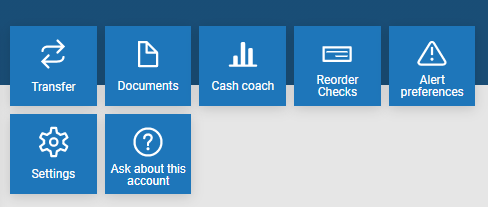
- Click on the blue Cash Coach tile located on the right
How does Cash Coach function?
Dashboard
See which spending category you have spent the most in so far this month.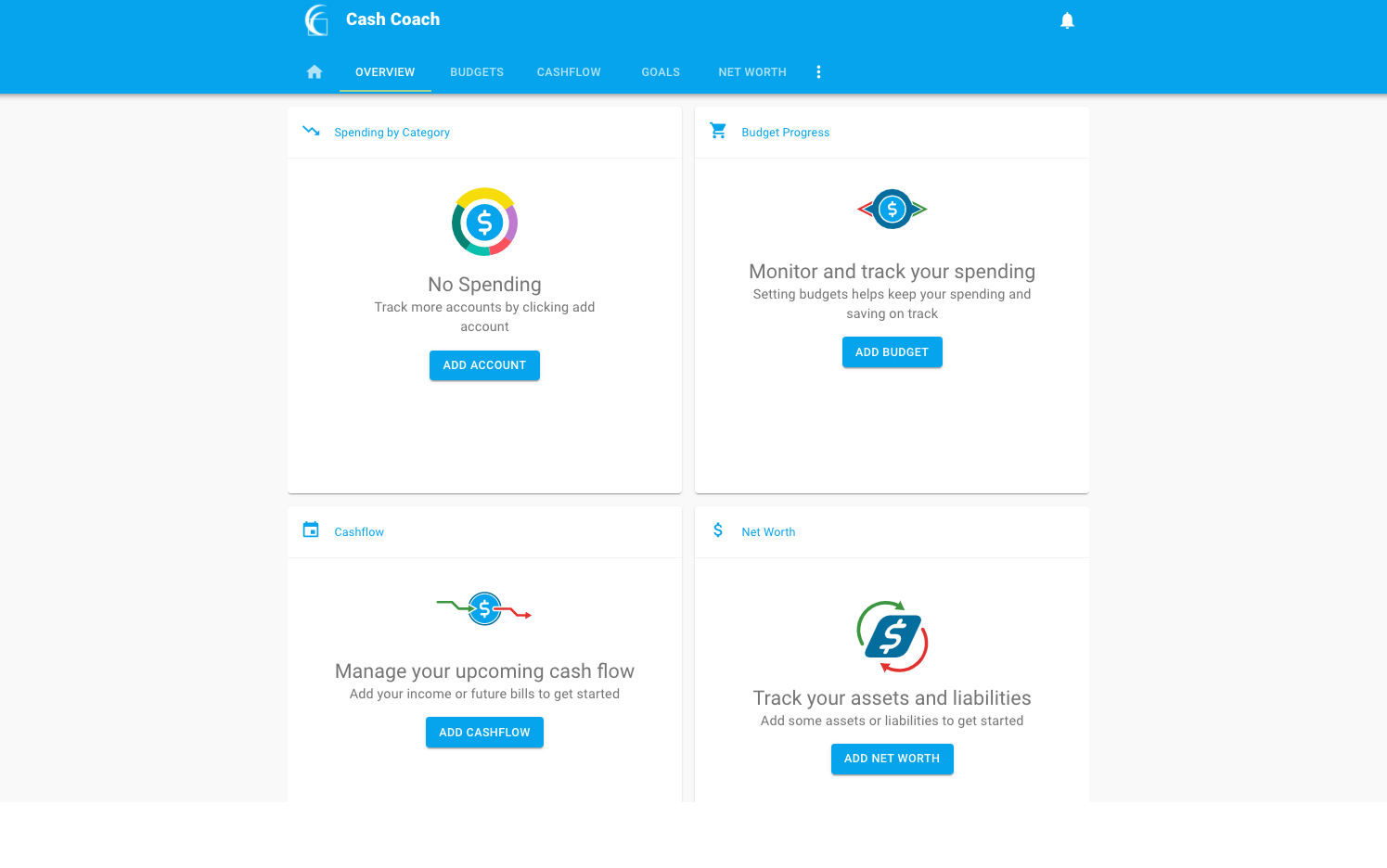
- Select other parts of the wheel to see other major category spending, and your transactions will categorize themselves with tags
- To personalize these categories, select the transaction and edit the tag
- When you select a transaction from the dashboard you can also change the name of the transaction, create a budget or add a recurring transaction to your cashflow calendar
Spending Targets
New users can look at the insights for guidance on what to budget based on spending.
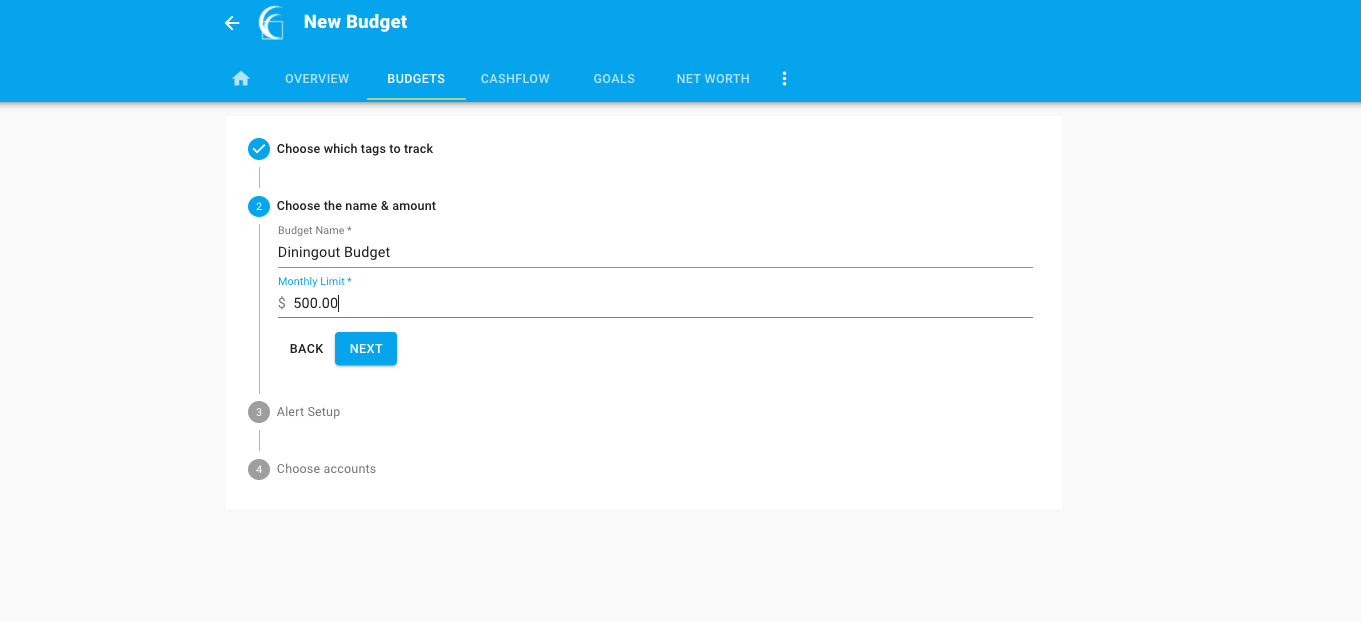
- Navigate to Budgets and click on View Budgets
- Click on the spending target you’d like to edit from the list
- Click Edit Budget to edit or delete
- You can change the name, amount, tags, and accounts associated with this spending target from here
Cashflow
The cash flow calendar brings your budget to life through an interactive calendar.
- Navigate to Cashflow
- Click the plus sign to Add Income or Add Bill
- Enter in the required information, then select Save
Goals
Create savings goals, like saving for a vacation, or a debt reduction goal, like paying off a high-rate credit card.
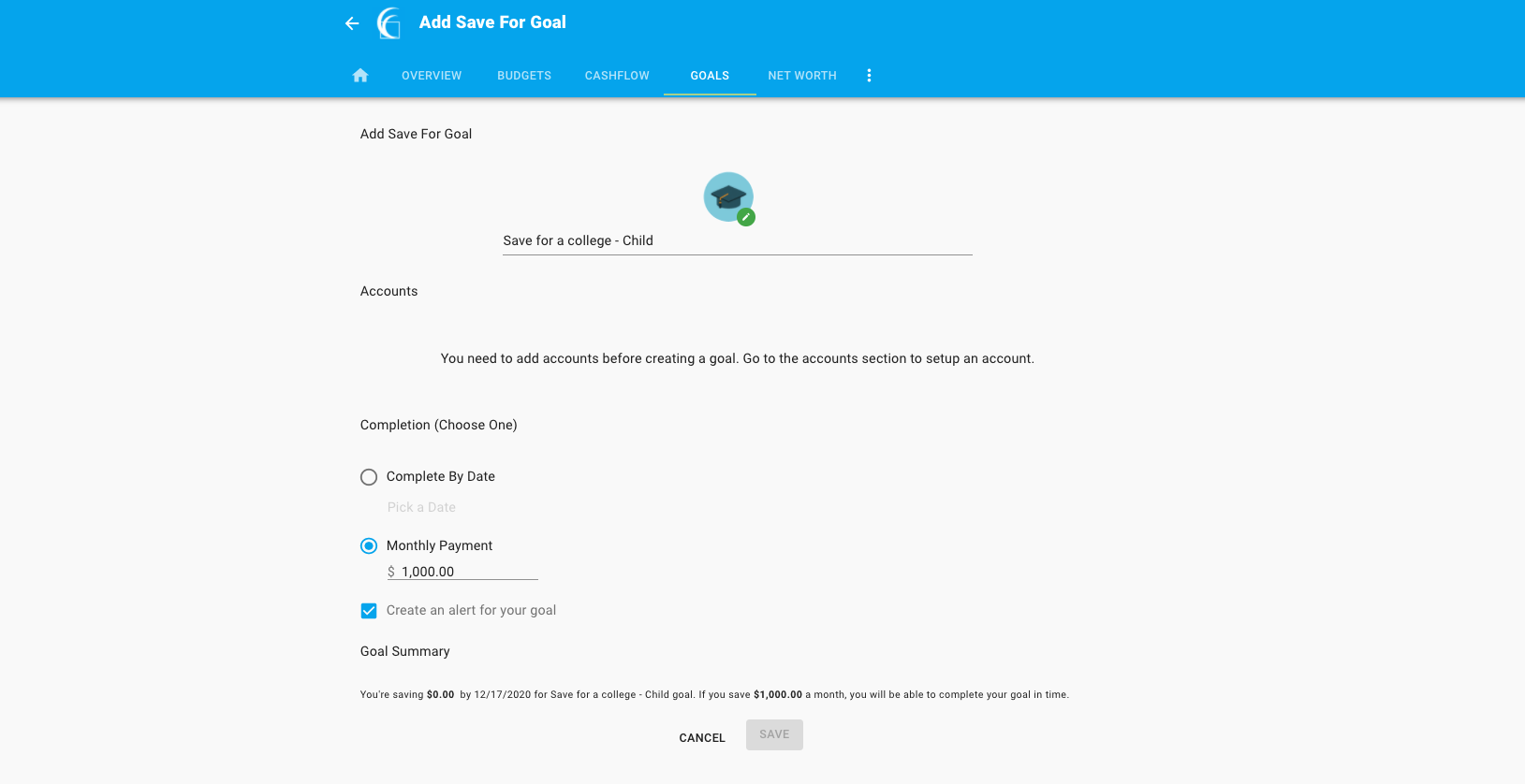
- Navigate to Goals, then select Add Goal
- Select your desired pay off or savings goal
- Fill in the required information
- Click Save to complete the process of adding a new goal
Keep in mind, your goal summary will update your completion date and the amount needed per month according to your preferences. Goals will automatically update your progress and will reflect your day-to-day account balances.
Add an Account
Syncing other accounts for a complete financial picture is simple.
- Navigate to Accounts, then click the plus sign to Add Linked Account
- Select an institution or use the search to find your institution
- Enter in the required information, then select Connect
- You’ll receive a notification on your PFM dashboard once the account has been synced successfully
Bill Pay
Put your payments on autopilot.
How do I set up online Bill Pay?
- Log in to online banking
- Click Payments from the drop-down menu
- Click Manage Payments in the top right-hand corner
- A message confirming you wish to enroll will appear; click Enroll
- Once you've enrolled, you may add and manage your payments through both online and mobile banking.
How do I add a new bill?
In online banking:
- Log in to online banking
- Under the Move Money tab, select Pay a Bill
- Select Add Another Bill
- Input your account info for the payee you are setting up, then click Submit
- Enter your online banking password to confirm
- From there, you can pay that bill or add another bill
In mobile banking:
- Log in to mobile banking
- Click the hamburger menu (three stacked horizontal lines) in the upper left-hand corner
- Select Payments
- Click Make a Payment
- Click the + in the upper right-hand corner
- Select who you're paying (either a company or a person)
- Enter payee information, then click Continue
- Enter a mailing address, then click Submit
What are Rapid Transfers?
Rapid Transfers are the new convenient way to move your money between accounts quickly. With Rapid Transfers, funds that once took days to process can now be delivered in seconds. This speed is possible because Rapid Transfers are sent over card networks rather than traditional ACH rails, significantly reducing transfer completion times.
How is rapid transfer different from products like Venmo or CashApp?
Rapid Transfers allow accountholders to move money between accounts they own at different financial institutions in real time. Transfers are completed through the bank’s digital channels and use card networks (Visa Direct and Mastercard Send) for faster delivery than traditional ACH transfers.
When would I use Rapid Transfer?
There are many reasons you may need to quickly transfer funds between accounts, including:
- Transferring funds between personal bank accounts: You have accounts at different financial institutions and needs to move money rapidly between them.
- Moving funds between a prepaid debit card and a bank account: You want to transfer money from a digital wallet to your primary bank account for easier access to cash or to pay bills.
- Consolidating funds across multiple accounts: You have small balances spread across different accounts or cards and want to combine them into one account for easier financial management.
- Emergency fund transfers: You want immediate access to funds in a different account while shopping, traveling, or making a last-minute bill or loan payment.