




Card Controls within Cornerstone's mobile app allows you to manage and customize how your cards are used and stay updated on transactions right from your phone.
Why use Card Controls?
sticky header-offset
Card Controls offers a great way to manage your spending and enhance security.
Easily turn your card on or off, set spending limits, and receive real-time notifications for each transaction. This means you have better control over your finances and can quickly address any unauthorized activity.
Card Security
sticky header-offset
- Card Access: Misplaced your card? Turn your cards on and off, adding a level of security to your accounts.
- Real-Time Alerts: Get instant notifications for every transaction, so you’re always in the know.
- Location: Set My Location to ensure transactions occur only when you're near your physical location. If a transaction is attempted from a different location, it can be automatically declined to protect against unauthorized use.
Card Management
sticky header-offset
- Budgeting: Card Controls is a great tool for budgeting, allowing you to set personal spending limits.
- Easy Management: Set controls and alerts to fit your needs.
- Joint Ownership: Parents can limit spending amounts, and restrict merchant types on youth cards.
- Type of Usage: Allows you to restrict online purchases being made if you only use the card for in-person purchases
Card Controls provides peace of mind and helps you stay on top of your financial activities effortlessly. Customize your settings to fit your personal preferences, making it simpler to track and manage your card use.
How to set up card controls:
Accessing card controls within the Cornerstone mobile app is simple. Follow these steps below to stay on top of your card activity with just a few taps!
- Log in to the Cornerstone mobile banking app
- In the top left corner, tap the 3 lines to drop the menu down
- Click Card Controls located towards the bottom of the menu
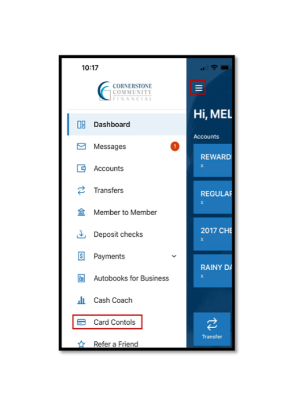
- The first time Card Controls is selected, an option to Install Card Controls will appear, so tap on it to be directed to the app store on your device and download the CCF Card Controls app to continue
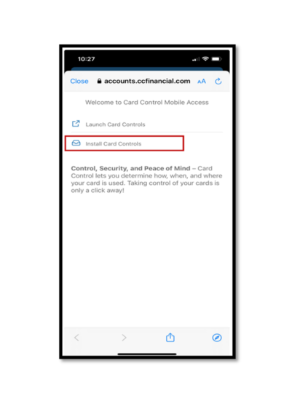
- Once downloaded, the app will appear on the home screen of your mobile device
- Open the Card Controls app and register as a New User
- After registering, return to the Cornerstone mobile app and tap the three lines to drop the menu down
- Click Card Controls located towards the bottom of the menu
- Since you have installed the Card Controls app, you can now select Launch Card Controls
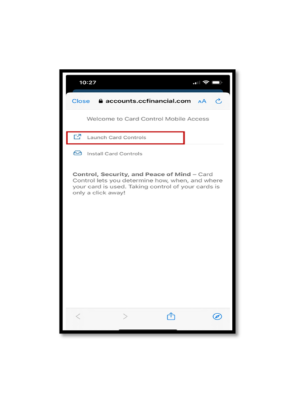
- Once selected, you will be taken to the main Card Controls dashboard
- On the main menu, you will find a section for Cards and one for Latest Transactions
- In the Cards section, you can easily turn your cards on or off
- In the Latest Transactions section, you can view your recent card transactions for all your Cornerstone cards